 Turkey (Türkçe)
 Worldwide (English)
Installing on NGINX cPanel / WHM Server

Follow the steps below to install NGINX on your CPanel / WHM Server.
1- First, we log in as root via SSH.
2- We run the commands below to install Engintron, which will install NGINX.
cd/; rm -f engintron.sh; wget –no-check-certificate
https://raw.githubusercontent.com/engintron/engintron/master/engintron.sh; bash
engintron.sh install
3- The above installation will take a few minutes depending on the features of your server.
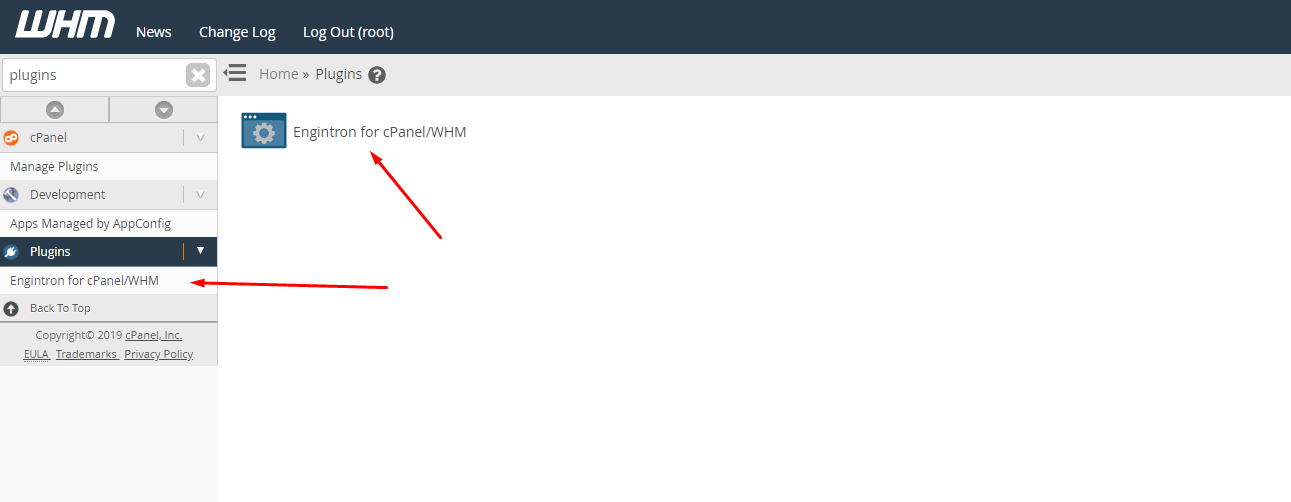
4- As shown in the screenshot below, we write Plugins instead of searching.If you see Engintron for cPanel/WHM, it means that your Engintron is successful with NGINX.
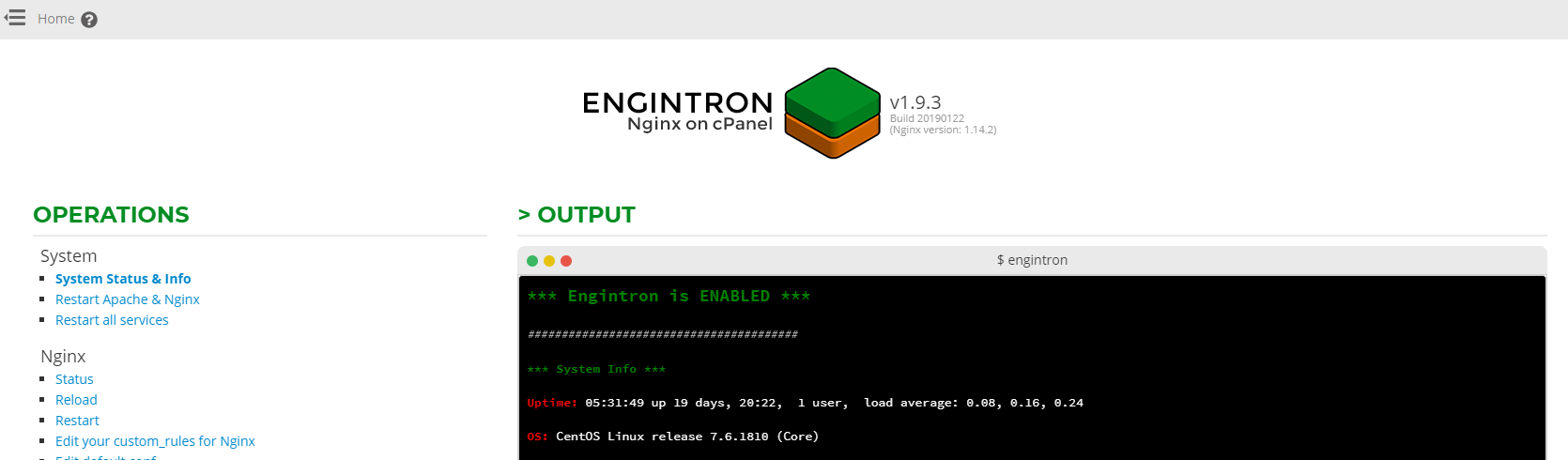
Once opened, Engintron's Front Page looks like below.
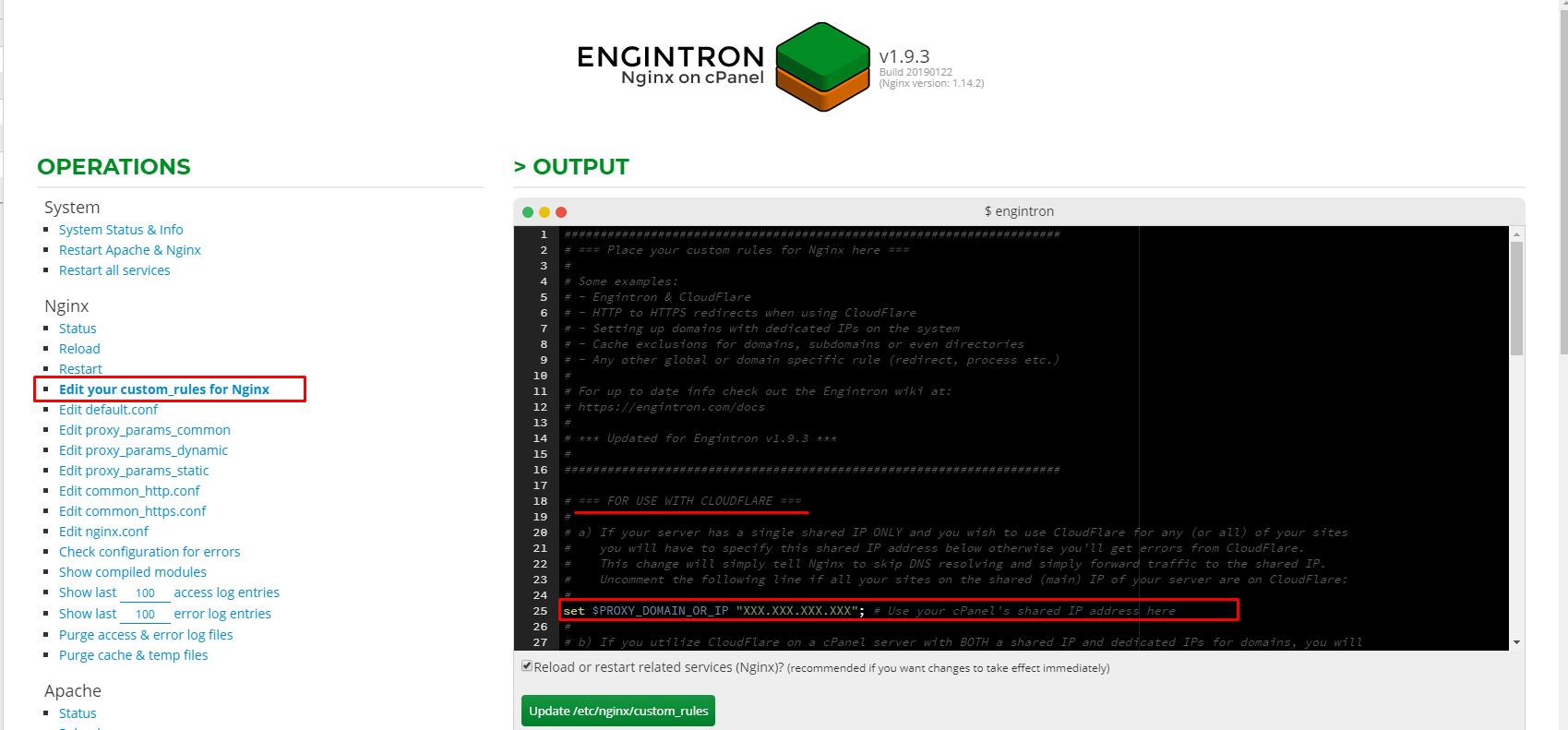
Configuration for Cloudflare Users
1-We open Engintron as explained in the last stage of the installation.
2-From the left bar, under the NGINX Menu, we click on Edit your custom_ rules for Nginx (default view).
3. We remove the comment of the following line by removing the # character.
set $PROXY_DOMAIN_OR_IP “XXX.XXX.XXX.XXX”;
XXX.XXX.XXX.XXX - This is the shared IP address of your cPanel, we change it and click on update rules.
4-Finally, engintron will restart and everything will be removed from the box.
NGINX installation has been successfully achieved with Engintron.
Can't find the information you're looking for?
You have examined the knowledge base in detail, but if you cannot find the information you need,
Create a Support Ticket-
How to Open Ports in Windows?
1302 2
-
How to Grant Windows Administrator Privileges?
864 0
-
How to install Webmin on Ubuntu?
1451 2
-
Linux SSH Terminal Commands and Explanations
1363 3
-
CentOS Stream 10 Update Commands
1401 1
-
CentOS Stream 9 Update Commands
2234 2
-
CentOS Stream 8 Update Commands
1235 0
-
What is FreeBSD?
1335 2
-
Out: 452 4.3.1 Insufficient system storage
1347 2
-
Turning Off Automatic Updates in Windows Operating Systems
1503 1